Mac Basics: A Strategic Briefing on Human-Centered System Management

Executive Summary

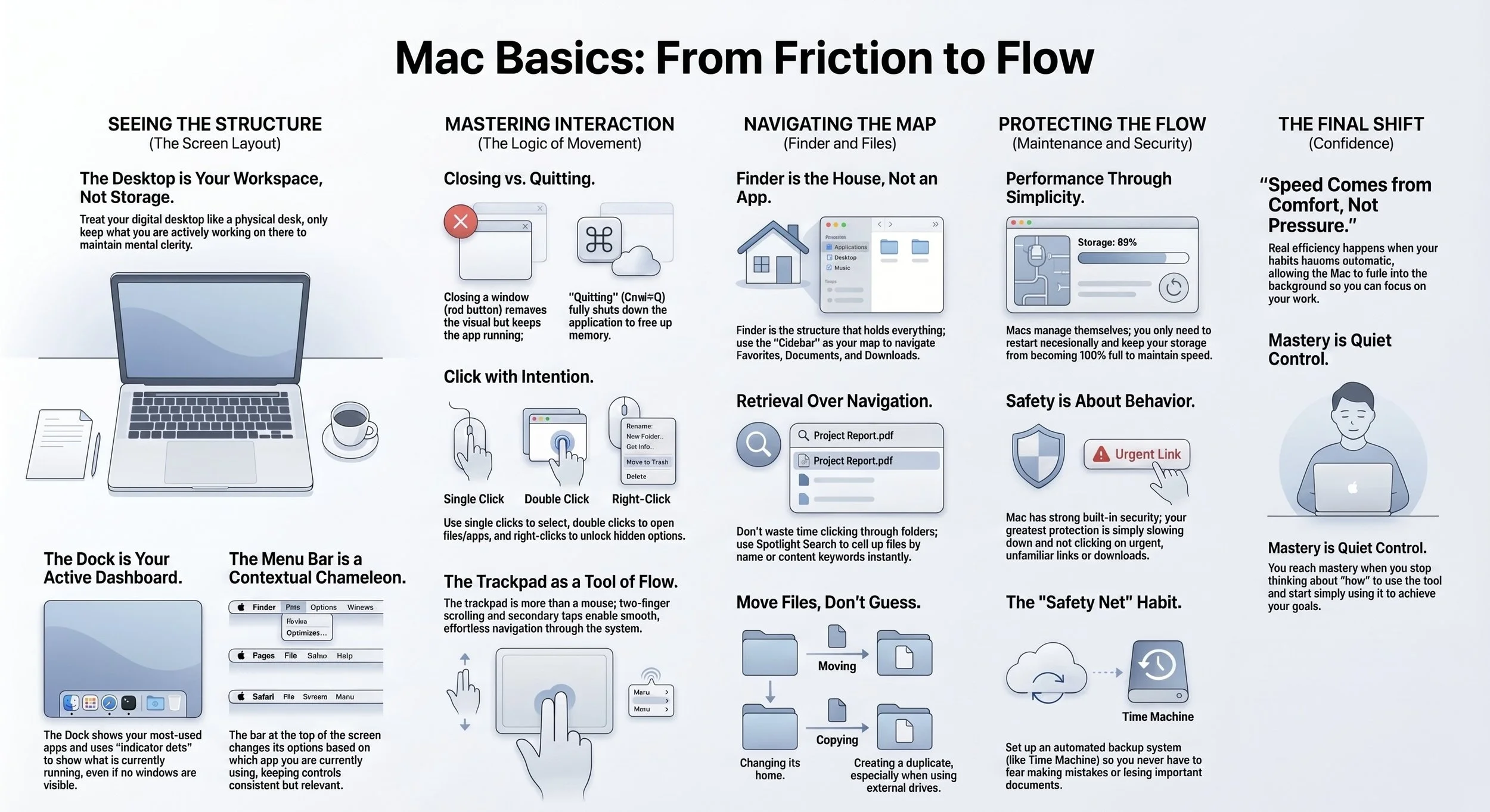
The provided documentation, primarily authored by Allen DeKeyser, outlines a human-centered approach to mastering the Mac ecosystem. The core philosophy posits that technical struggle is rarely a result of the system's complexity, but rather a lack of clarity in how the user interacts with it. By shifting from a reactive "feature-based" mindset to an intentional "system-based" understanding, users can eliminate "friction"—the subtle hesitation and mental clutter that slows productivity.

Key takeaways include:

  • Friction vs. Clarity: System efficiency is achieved not by adding more tools, but by removing what doesn't belong and simplifying the workspace.

  • The Desktop as Workspace: The desktop is defined as a temporary "starting space" for active tasks, not a permanent storage unit.

  • Operational Logic: Understanding the distinction between closing a window and quitting an app is fundamental to managing system resources.

  • Proactive Organization: True control stems from intentional file naming and folder structures that reflect the user's natural thought patterns.

  • Security and Maintenance: Mac performance is best maintained through built-in tools and behavioral awareness rather than third-party "cleaning" software.

--------------------------------------------------------------------------------

I. The Structural Logic of the macOS Environment

The documentation emphasizes that Apple’s interface is "intentional rather than incomplete." Mastery begins with recognizing the specific purposes of the primary interface elements.

Interface Elements and Functions

Element

Primary Purpose

Key Strategic Insight

Desktop

Workspace

It is a "reflection of the mind"; clutter here pull at attention and creates mental weight.

The Dock

Flow

Represents the daily flow; should only contain apps used frequently.

Menu Bar

Context

Active and adaptive; it provides tools for the specific app currently in focus.

Apple Logo

System Control

The steady point for restarting, shutting down, and accessing main settings.

Finder

The Map

The "house structure" that holds every file, folder, and drawer.

The Desktop vs. Storage

A critical error identified in the text is treating the desktop as a permanent storage unit. The guide advocates for a "clear starting point" every time a user sits down.

  • Workspace Rule: The desktop should only hold what is being worked on right now.

  • Mental Noise: Every file on the desktop is a visual reminder of something unfinished, which divides focus.

--------------------------------------------------------------------------------

II. Interaction and Operational Control

Effective control of a Mac is built on muscle memory and the transition from Windows-based habits to macOS-specific rhythms.

Interaction Mechanics

  • Intentional Clicking: Single clicks select; double clicks execute/open.

  • Secondary (Right) Click: Essential for unlocking options specific to the object clicked. The text notes: "If you don’t use right-click, you’re only using half your Mac."

  • The Trackpad: Designed for "flow" rather than just replacement of a mouse. Key gestures include two-finger scrolling and two-finger tapping for secondary clicks.

App Lifecycle Management

One of the most frequent points of confusion for new users is the status of applications.

  • Closing vs. Quitting: Clicking the red button closes the window, but the app remains active in the background.

  • Dock Indicators: A small dot under an icon in the Dock signals that the app is still running and utilizing system memory.

  • Focus Decisions: Users should intentionally "Quit" apps they are truly finished with to clear mental and system space.

--------------------------------------------------------------------------------

III. File Management and Organization (Finder)

Finder is described as the system that "holds everything together." Understanding its structure eliminates the need for constant searching.

The Finder Sidebar: Navigational Locations

The Sidebar acts as a "map" categorized under "Favorites":

  • Documents: The designated home for important, organized files.

  • Downloads: A "holding area" that should be cleared regularly to prevent "piling."

  • Desktop: Simply another folder, despite its visual prominence.

Organizational Habits

  • Intentional Placement: Users should shift from asking "Where did this go?" to "Where should this live?"

  • Naming Conventions: Vague names (e.g., "Document1") create future friction. Clear, descriptive naming allows for effortless retrieval.

  • Folder Simplicity: Avoid deep, multi-layered subfolders. A system should match the user's natural thinking (e.g., by project, category, or date) and be understandable at a glance.

--------------------------------------------------------------------------------

IV. Efficiency and Advanced Workflow

Efficiency is defined not by "rushing," but by "moving with confidence."

Retrieval over Navigation

  • Spotlight Search: The most powerful tool for finding files. It searches file names and internal content, allowing users to "call information to them" rather than walking through folders.

  • Shortcuts: Recommended as a way to reduce effort rather than do more. Focus on one or two shortcuts at a time (e.g., switching between apps) until they become second nature.

Focus and Multitasking

  • Uncontrolled Switching: Multitasking is often just "reactive switching." The documentation suggests identifying a "main task" and keeping only supporting windows visible.

  • Notification Management: "Silence is a tool." Notifications should be restricted to apps that add real value, allowing the user to engage with communications on their own terms.

  • Email Management: Email should not be treated as a to-do list. Users should separate "reading" from "responding" to maintain control over their day.

--------------------------------------------------------------------------------

V. System Maintenance and Security

The Mac is designed to manage itself, and user intervention should be minimal and informed.

Performance Maintenance

  • Built-in Management: The system handles memory and background processes automatically.

  • Storage Awareness: The primary cause of slowdowns is a drive reaching capacity. Users should remove unused apps and large, unnecessary files.

  • Avoiding "Cleaners": Third-party "cleaning software" is often unnecessary and can create more problems than it solves.

  • The Role of Restarting: Occasional restarts reset temporary processes and provide a "fresh start" for the system.

Security Behavioral Model

Security is framed as a matter of behavior rather than just software.

  • Built-in Protections: macOS checks apps before opening and blocks unsafe actions.

  • Behavioral Risks: Most threats stem from clicking untrustworthy links or downloading unfamiliar software.

  • Urgency as a Signal: Links or emails that create a sense of pressure are primary signals for the user to "slow down" and evaluate.

--------------------------------------------------------------------------------

VI. Critical Philosophical Takeaways

The DeKeyser guide concludes with several insights regarding long-term mastery:

  • "Complexity feels like progress—but it isn’t." Mastery is the ability to maintain a simple, effective system even as responsibilities grow.

  • "The Desktop is a starting space, not a storage space." Maintaining a clear visual environment is the foundation of a focused mind.

  • "Confidence comes from recovery." Real confidence is not the absence of mistakes, but the knowledge that most errors (deleted files, misplaced items) are recoverable through backups and system understanding.

  • "Organization is not an event; it's a habit." Small, consistent decisions (saving files properly, closing windows) prevent the need for overwhelming system overhauls.

NotebookLM can be inaccurate; please double check its responses.